How Can I Tell If a VPN Is Blocking My Internet?
Learn how to check whether your VPN is stopping internet access and what to try before changing your settings.
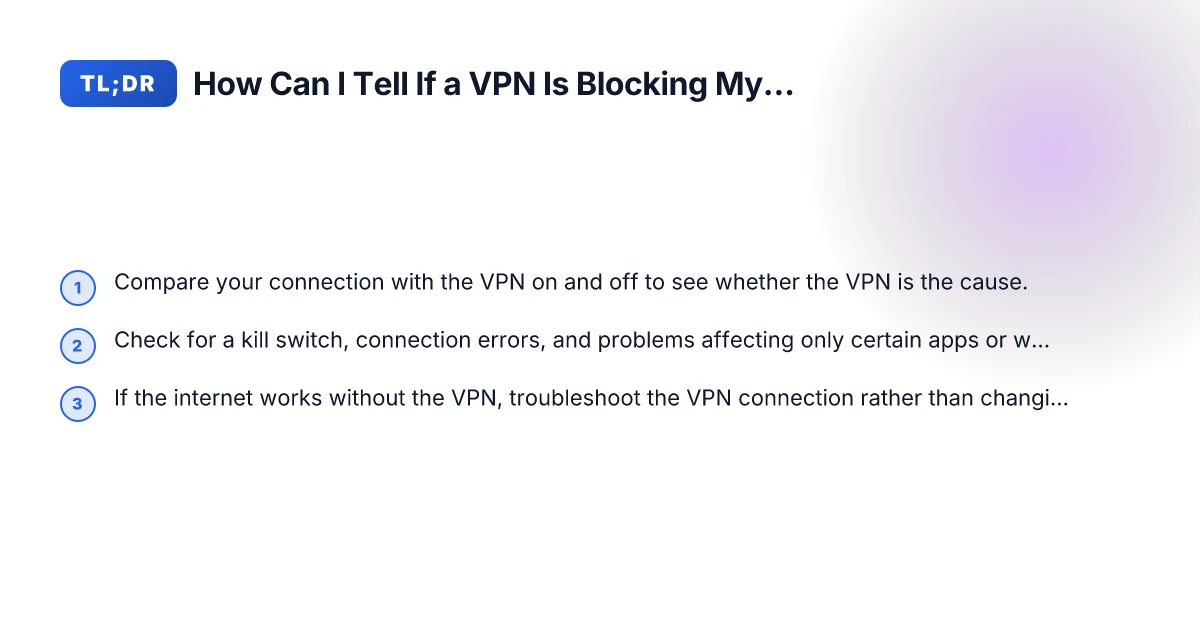
If you’re asking, “How can I tell if a VPN is blocking my internet?”, compare your connection with the VPN connected and disconnected. If websites and apps work when the VPN is off but stop working when it is on, the VPN connection or one of its settings is likely involved. If the internet fails in both cases, the problem may instead be your Wi-Fi, router, device, or internet service.
A few quick checks can help narrow it down without leaving your connection unprotected for long. Avoid entering sensitive information while troubleshooting on an unsecured network.
| VPN | Obfuscation | From / month | Plan | Free plan | Refund | Alipay | UnionPay | Crypto | Website opens in China | Trustpilot | |
|---|---|---|---|---|---|---|---|---|---|---|---|
 ZoogVPN | Turn on manually Shadow | $2.49/mo | 27 months: $59.99 | Yes | 7 days | ✓ | ✓ | ✓ | ✓ | Official site blocked; our special link opens (4.4 s) | 4.2/5 (195 reviews) |
 NordVPN | Turn on manually Obfuscated Servers / NordWhisper | $3.49/mo | 27 months: $94.23 | No | 30 days | ? | ✗ | ✓ | ✓ | ✗ Blocked | 4.2/5 (51,628 reviews) |
 ExpressVPN | ✓ On by default all servers | $3.00/mo | 28 months: $84 | No | 30 days | ✗ | ✗ | ✓ | ✗ | ✗ Blocked | 4.4/5 (29,706 reviews) |
 Surfshark | ✓ On by default Camouflage, with OpenVPN | See site | See site | No | 30 days | ✗ | ✗ | ✗ | ✓ | ✗ Blocked | 4.3/5 (31,823 reviews) |
 Proton VPN | Turn on manually Stealth, free plan too | $2.99/mo | 12 months: $35.88 | Yes | 30 days | ✗ | ✗ | ✗ | ✓ | ✗ Blocked | 2.1/5 (1,040 reviews) |
 Astrill VPN | Turn on manually StealthVPN / OpenWeb | $12.50/mo | 24 months: $300 | No | See site | ✗ | ✗ | ✗ | ✓ | ✗ Blocked | 1.3/5 (110 reviews) |
 Private Internet Access | Turn on manually Shadowsocks, OpenVPN only | $2.03/mo | 40 months: $81.2 | No | 30 days | ✗ | ✗ | ✗ | ✗ | ✗ Blocked | 4.2/5 (11,033 reviews) |
 CyberGhost | Turn on manually selected servers | $2.19/mo | 28 months: $61.32 | No | 45 days | ✗ | ✗ | ✗ | ✓ | ✗ Blocked | 4.0/5 (24,178 reviews) |
 PureVPN | Turn on manually switch to OpenVPN | $1.69/mo | 60 months: $101.55 | No | 31 days | ? | ? | ✗ | ✓ | ✗ Blocked | 4.4/5 (17,994 reviews) |
 AdGuard VPN | ✓ On by default TrustTunnel | $2.99/mo | 24 months: $71.76 | Yes | 30 days | ✓ | ✗ | ✓ | ✓ | Official site blocked; our special link opens (3.7 s) | 4.3/5 (290 reviews) |
 Mullvad | Turn on manually QUIC / Shadowsocks / LWO | $5.61/mo | €5/mo | No | 14 days | ✗ | ✗ | ✗ | ✓ | ✗ Blocked | 3.2/5 (192 reviews) |
 Windscribe | Turn on manually Stealth / WStunnel | $5.75/mo | 12 months: $69 | Yes | See site | ✗ | ✗ | ✗ | ✓ | ✗ Blocked | 4.7/5 (13,355 reviews) |
 StrongVPN | Turn on manually Scramble, OpenVPN TCP | See site | See site | No | 30 days | ✓ | ✗ | ✗ | ✗ | ✗ Blocked | 4.4/5 (2,695 reviews) |
 LightXtreme 闪连 | Not listed | $7.08/mo | 12 months: $84.99 | Yes | 30 days | ✓ | ✓ | ✓ | ✓ | ✓ Yes (3.5 s) | No page |
Prices checked 2026-11-10 on each vendor's pricing page (cheapest long plan, USD). Check the vendor's checkout for the final price.
Obfuscation checked 2026-11-14 on each vendor's site and help center: "on by default" = nothing to set; "turn on manually" = switch protocol or mode in settings; "not listed" = the vendor describes no obfuscation.
Payment methods checked 2026-11-10 on each vendor's payment pages: all 14 take cards and PayPal; ✗ = not listed, ? = the vendor's own pages disagree.
China access: whether the official website opens from mainland China networks (tests the website only, not the VPN connection). Last checked 2026-11-18 01:02 Beijing time.
Trustpilot score and review count checked 2026-11-10.

Editor's pick: NordVPN — fast, secure VPN — Strong encryption, a no-logs policy and apps for every device. 30-day money-back guarantee. Get NordVPN →
Quick checks to tell whether the VPN is blocking your internet
| Check | What to try | If access returns | If there’s no change | What it suggests |
|---|---|---|---|---|
| Pause the VPN | Disconnect temporarily | VPN may be blocking traffic | Check other causes | VPN connection issue |
| Change VPN server | Connect to another server | Original server may be the issue | Try another check | Server-specific problem |
| Check other websites | Open a few different sites | One site may be blocked | Broader connection issue | Scope of the problem |
| Try another app | Open a different online app | The first app may be affected | More widespread issue | App-specific or general |
| Check the VPN status | Look for a connected indicator | VPN is connected | VPN may be disconnected | Connection status |
| Check the kill switch | See whether it is enabled | It may be stopping traffic | Investigate other settings | Kill switch involvement |
| Compare another device | Test the same network on another device | Device settings may be involved | Network or VPN issue may remain | Where to investigate |
Compiled November 2026; check the provider's site for current details.
Check whether the VPN is the cause
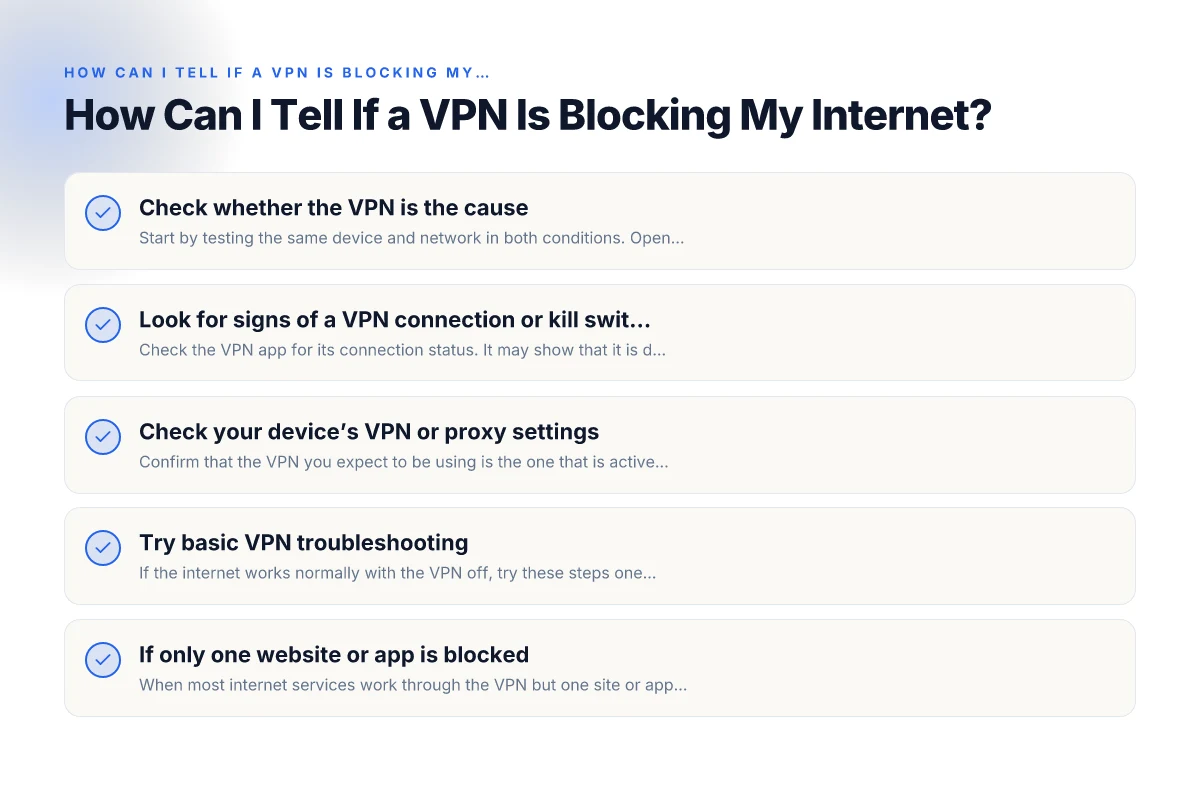
Start by testing the same device and network in both conditions. Open a familiar website or app with the VPN connected, then disconnect the VPN and try again. Reconnect it and repeat the test if needed.
| What you observe | What it may indicate |
|---|---|
| Internet works with the VPN off but not with it on | A VPN setting, server, or connection issue is likely |
| Internet fails with the VPN on and off | The issue may be with Wi-Fi, the router, device, or ISP |
| Some sites work, but others do not | A site may be blocking or having trouble with the VPN’s IP address |
| One app fails while other apps work | The issue may be limited to that app or its connection settings |
This comparison is a useful clue, not absolute proof. A website can be unavailable for unrelated reasons, and a brief connection change may make a temporary problem appear to be VPN-related.
Look for signs of a VPN connection or kill switch issue
Check the VPN app for its connection status. It may show that it is disconnected, trying to connect, or connected to a server. If the app reports an error, note its wording. It can point to a failed sign-in, server problem, or connection setting.
A kill switch can also explain why your internet stops working. This feature is designed to block internet traffic if the VPN disconnects, helping prevent data from leaving outside the encrypted connection. If the VPN drops unexpectedly, the kill switch may block access until the VPN reconnects or you change the setting. NordVPN for Windows: How to Download, Install, and Use It
Look for these clues:
- The internet stops as soon as the VPN disconnects.
- The VPN app repeatedly tries to connect but never completes.
- Your device shows Wi-Fi connected, but websites do not load while the VPN is active.
- The VPN app reports a connection error or says the server is unavailable.
If you find a kill switch setting, check its description in the VPN app. Don’t turn it off automatically: doing so may allow internet traffic to bypass the VPN. If you disable it briefly to test, do so only if you understand the privacy trade-off, then restore your preferred setting.
VPN or proxy settings to compare when access is blocked
| Setting or indicator | What to look for | Possible effect | Next step |
|---|---|---|---|
| VPN connection status | Connected or disconnected | A stale or failed connection may interrupt access | Reconnect to the VPN |
| Kill switch | Enabled or disabled | May block internet access when VPN drops | Check the VPN connection |
| Proxy setting | Enabled or disabled | May route traffic through an unexpected proxy | Review or disable an unneeded proxy |
| VPN profile | Recognized or unfamiliar | An incorrect profile can affect connection | Confirm the profile you intend to use |
| VPN app permission | Allowed or restricted | Restrictions may prevent a working connection | Review device permissions |
| Network connection | Wi-Fi or mobile data available | No underlying connection means no internet | Test the network without the VPN |
| DNS or filtering setting | Custom or default | May affect access to particular sites | Compare with standard settings |
Compiled November 2026; check the provider's site for current details. Microsoft Edge Secure Network VPN Reviews: Is It Safe and Worth Using?
Check your device’s VPN or proxy settings
Confirm that the VPN you expect to be using is the one that is active. A separate VPN app, work profile, or proxy setting can affect your connection too.
- On a PC: Check the network or Wi-Fi settings for an active VPN or proxy connection.
- On a Mac: Look for the VPN status in the menu bar or check the network settings.
- On Android or iPhone: Open the device’s network settings and look for VPN status or a VPN profile. The exact menu names vary by device and software version.
If you see a VPN or proxy you do not recognize, don’t remove it without checking where it came from. It could be configured by your employer, school, or another app. If you use a work or school device, ask its administrator before changing network settings.
Try basic VPN troubleshooting
If the internet works normally with the VPN off, try these steps one at a time. Test your connection after each change so you can identify what helped.
- Reconnect to the VPN. Disconnect, wait briefly, and connect again.
- Choose another VPN server or location. The current server may be unavailable or unsuitable for the site or service you’re using.
- Restart the VPN app and your device. This can clear a temporary app or network issue.
- Check the VPN app’s settings. Review options such as the kill switch, proxy, or connection protocol. Change settings only when you understand their effect.
- Update the VPN app. If an update is available, install it using the app’s usual update process.
- Contact the VPN provider. Share the error message, device type, and whether the internet works when the VPN is off.
If you use a public Wi-Fi network, check whether you need to accept a sign-in or terms page before connecting to the VPN. Some networks require that step first. Avoid submitting sensitive information on a page unless you are confident it belongs to the network you intend to use. Nord VPN in China: Does It Work and How to Prepare
If only one website or app is blocked
When most internet services work through the VPN but one site or app does not, your overall internet connection may be fine. The service may be having a temporary issue, or it may not accept traffic from the VPN server’s IP address. A VPN IP detection tool can indicate whether an IP address is recognized as a VPN or proxy, but that result does not prove why a particular service is unavailable.
Try loading the service again later, or test another VPN server if your provider offers one. You can also check the service’s own help or status information. If the problem happens only with the VPN on, avoid assuming that your device or Wi-Fi is broken.
If you need to access the service without the VPN, decide whether the trade-off is acceptable for what you’re doing. Turning off a VPN means your traffic no longer passes through that VPN connection. Don’t use that as a default fix for sensitive activity.
Troubleshooting options by symptom Does Microsoft Edge Have VPN? What Edge Secure Network Does
| Symptom | First option to try | If it persists | What to check |
|---|---|---|---|
| Internet stops after VPN connects | Reconnect to the VPN | Try a different server | Connection status |
| Internet returns when VPN disconnects | Check the kill switch | Review VPN settings | Kill switch behavior |
| Only one website fails | Try another browser or network | Check whether the site is available | Site-specific access |
| Only one app fails | Restart the app | Review the app’s network settings | App-specific issue |
| VPN will not connect | Check the internet without VPN | Try reconnecting | Network availability |
| Some sites load, others do not | Test multiple sites | Review proxy or DNS settings | Filtering or routing |
| Problem began after a settings change | Restore the previous setting | Test again with VPN | Recent device changes |
Compiled November 2026; check the provider's site for current details.
Recommendation
Compare the same sites with the VPN on and off, then check the VPN app’s status and kill switch before changing device settings. If the internet works only when the VPN is disconnected, reconnect, try another server, and contact the provider if the issue continues. If it fails either way, troubleshoot your regular internet connection instead.